
The System for Award Management (SAM.gov) is the federal government’s master vendor database. You cannot legally receive a federal contract award, and in most cases cannot even be listed as a subcontractor on one, without an active SAM.gov registration. This chapter assumes you have never visited SAM.gov before and walks through every screen, button, and decision point you’ll encounter.
Before you start: gather these five things
Missing documentation is the single biggest cause of registration delays, so assemble all of this before you open a browser:
- Your EIN (Employer Identification Number) — must match your IRS records exactly, including how your legal business name is spelled and formatted
- Your legal business name and physical address — the address the IRS has on file; SAM.gov will not accept a P.O. box as your physical address (a separate mailing address is fine if it differs)
- Your entity type — LLC, corporation, sole proprietorship, partnership, etc.
- Bank routing and account numbers — for the electronic funds transfer (EFT) the government uses to pay you; have a voided check or bank letter handy to avoid transposition errors
- A government-issued photo ID and a phone number — you’ll need these for identity verification in the next section, before you ever reach SAM.gov itself
Part A: Create your Login.gov account
SAM.gov does not manage its own usernames and passwords — it uses Login.gov, the federal government’s shared sign-in service used across many federal websites. You set this up first, separately from SAM.gov itself.
Step 1. Open your browser and go to sam.gov.
Step 2. In the upper right corner of the homepage, click “Sign In.” [
Step 3. You’ll be shown the U.S. Government System terms of use. Click “Accept.” This redirects you to login.gov.
Step 4. On the login.gov screen, if this is genuinely your first time, click “Create an Account.” Enter your email address and select your language preference.
Step 5. Login.gov will email you a confirmation link — open your email, click the link, and set a password meeting login.gov’s requirements.
Step 6. Set up multi-factor authentication (MFA). Login.gov will ask you to choose a second verification method — a text message code, an authentication app, or a security key. Choose whichever you’ll reliably have access to every time you log in, since you’ll need this every single session, not just once.
Step 7. Scroll down, review, and accept the Rules of Use, then click “Submit.”
Step 8. Identity verification. Depending on your situation, login.gov may need to verify your identity against your government ID and, in some cases, credit bureau records. Have your driver’s license or state ID ready to photograph or scan. If automated verification fails — common causes are a recent house move, a name that doesn’t exactly match your credit file, or a low-quality ID photo — login.gov will direct you to complete in-person verification at a participating USPS location instead. This adds time, so don’t start this process the week your first bid is due.
Part B: Register your entity in SAM.gov
Once login.gov redirects you back to SAM.gov, you land in your SAM.gov Workspace — think of this as your personal dashboard for everything SAM.gov-related going forward.
Step 1. In your Workspace, find the “Entity Information” section (one of several boxed sections on the dashboard). Click the “Add New Entity” button inside it.
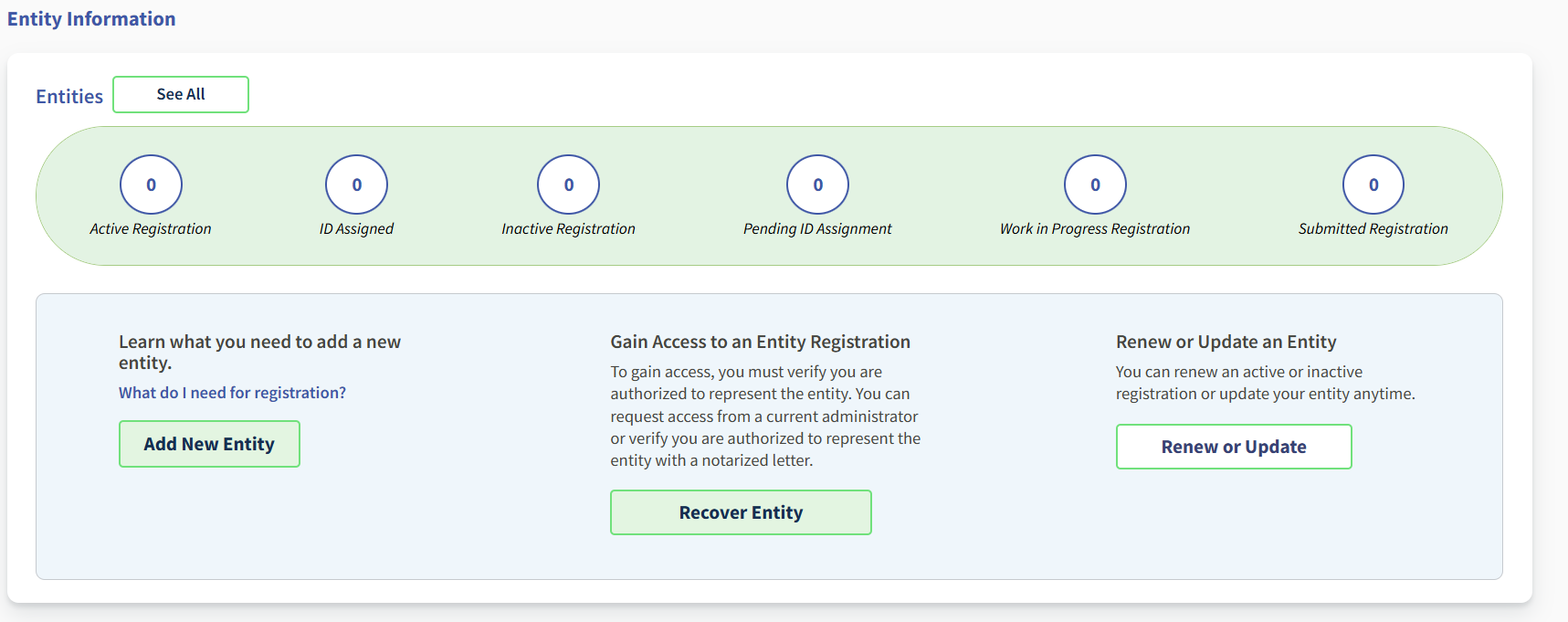
Step 2. On the next screen, click “Create New Entity.”
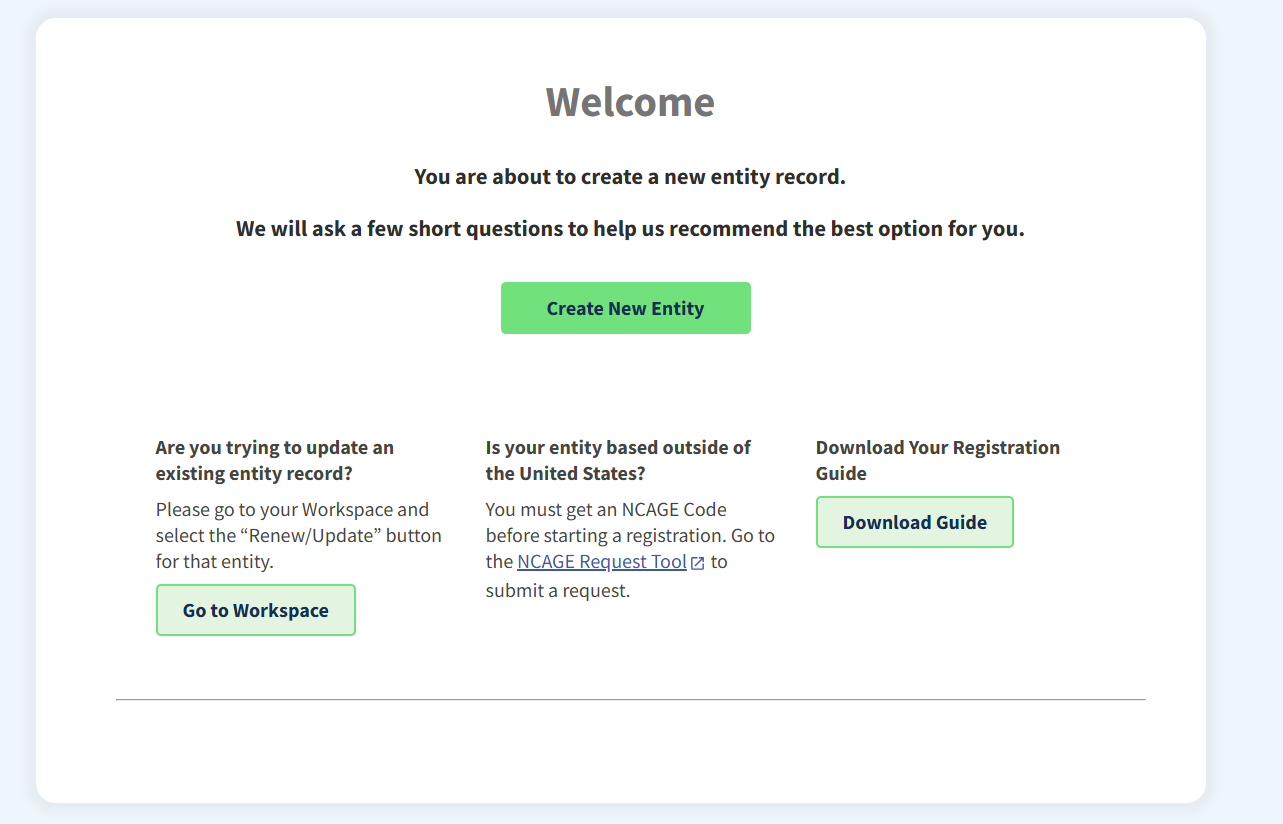
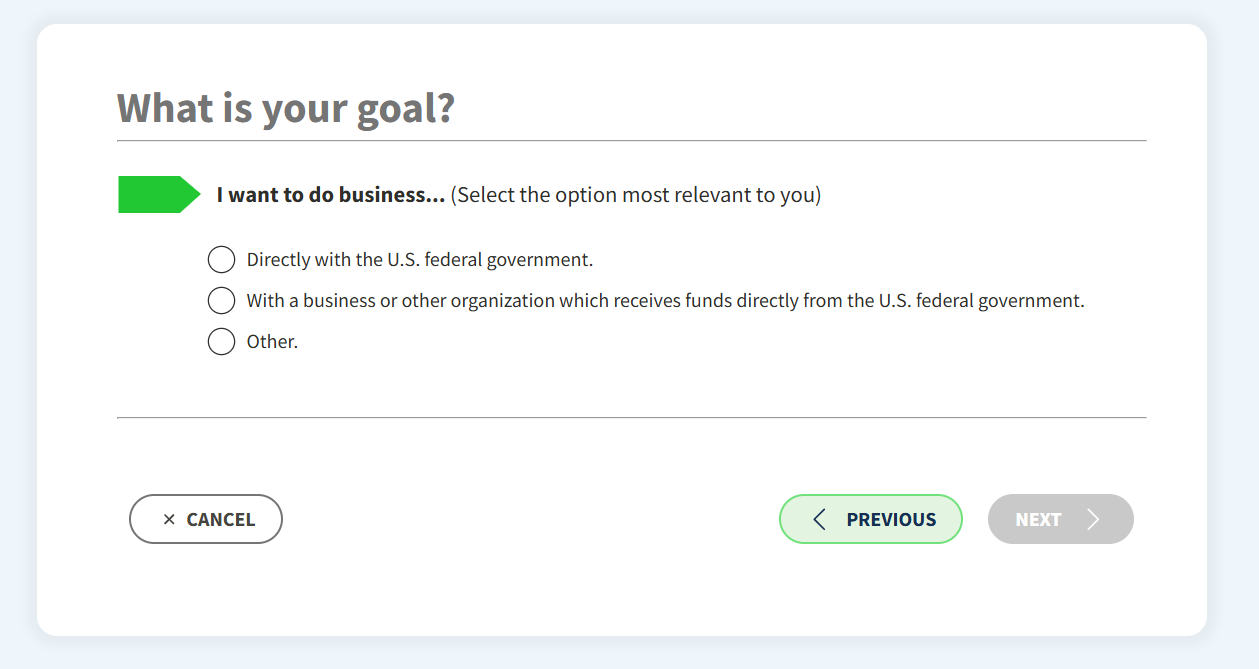
Step 3. Choose your goal. You’ll be asked whether you’re registering to do business directly with the U.S. federal government, with a business or other organization which receives funds directly from the U.S. federal government or other. If you intend to directly contract with FEDERAL ENTITIES, you should select the first options. This would be federal departments and organizations. The second option is to do business with entities that RECEIVE FUNDS FROM FEDERAL ENTITIES. A good example for this differentiation is a HUD(housing and urban development department) and the entities is funds. If you are contracting with a local housing agency at county or state level, you should choose option 2. Local housing agencies get funds directly from federal agencies but themselves are not federal agencies. But if you want to contract directly with HUD at the federal level choose option 1. In our experience most of the junk removal contracts are handled at the local level and the best option is to selection option 2.
Selecting option two will revel a further selection list as seen in the pictures below
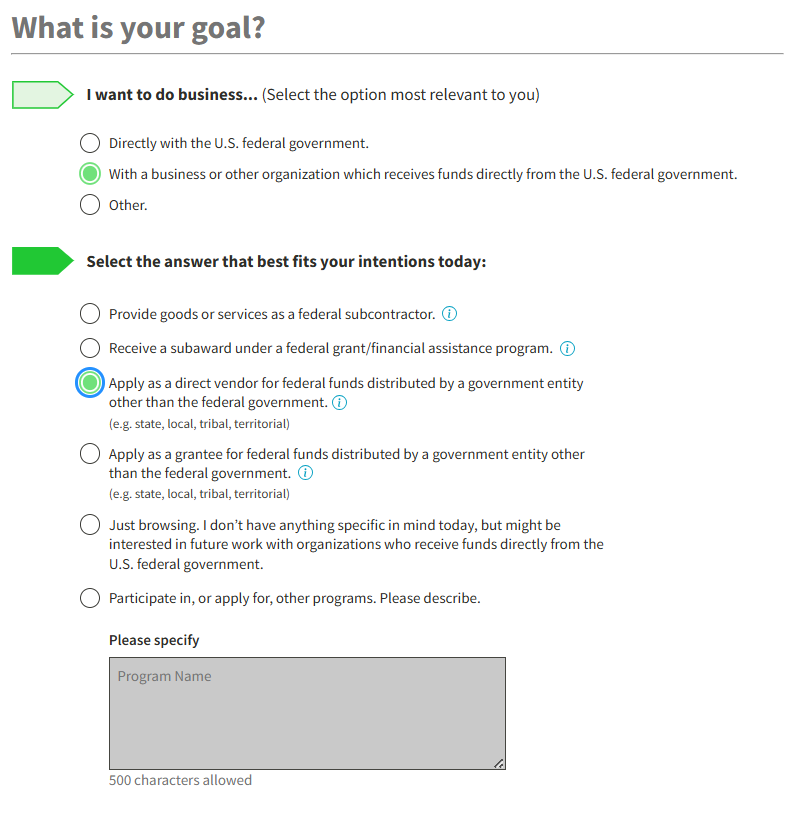
Select Apply as a direct vendor for federal funds distributed by a government entity other than the federal government. This will allow you to contract with state, local, tribal and territorial agencies that are recipients of federal grants. For junk removal business, this is where a bulk of the contracting opportunities are.
Step 4. Choose your purpose of registration. This is an important if you are already awarded a contract and have been requested an entity number. If not just chooses as seen in the picture
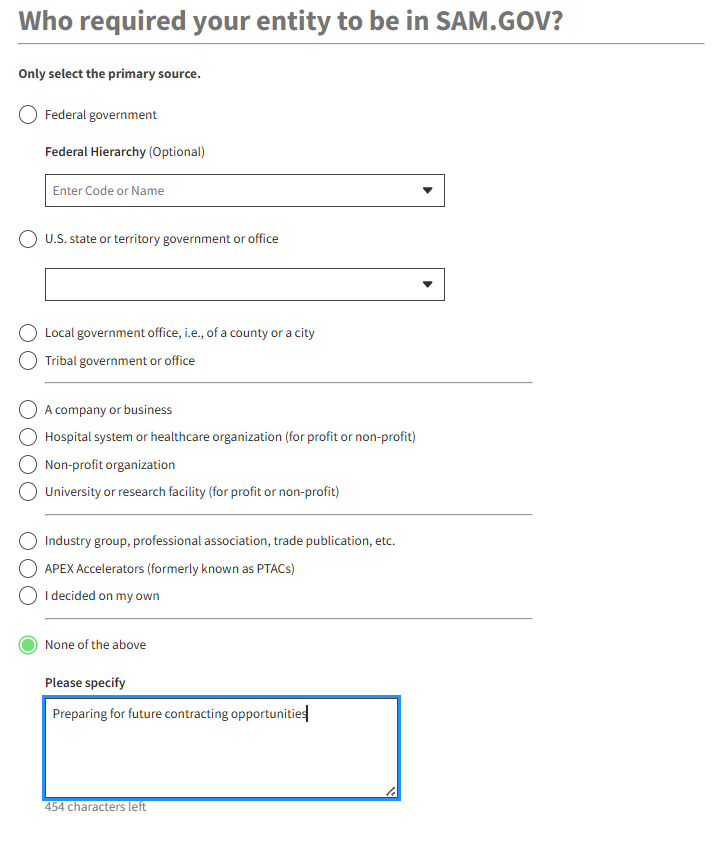
Step 5. Unique Entity Id – The next screen will be as shown in the picture below. The Unique Entity Id is a 12-character alphanumeric code used by the U.S. federal government to uniquely identify businesses, nonprofits, and other organizations tracking or doing business with the government.
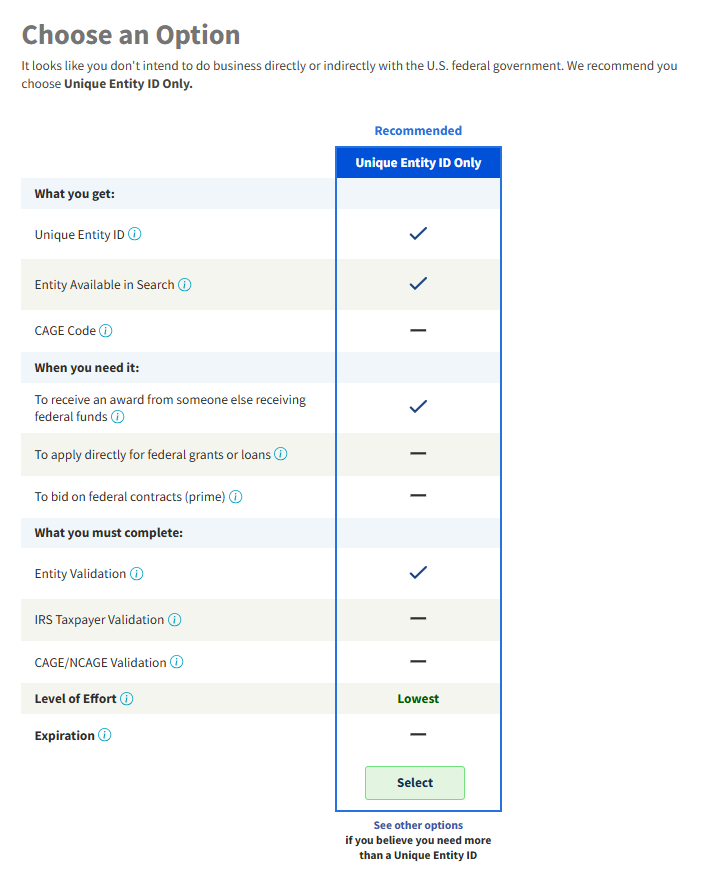
Note: SAM.gov has a checklist for entity registration that can be downloaded. We will attach a copy at the end.
Step 6. Entity search. The next screen will ask you to input your business entity information. Once you do that it will search millions of records to look up for your entity. It will be going through State SOS business registrations, so the information you put in should match the exact registration in your state filing.
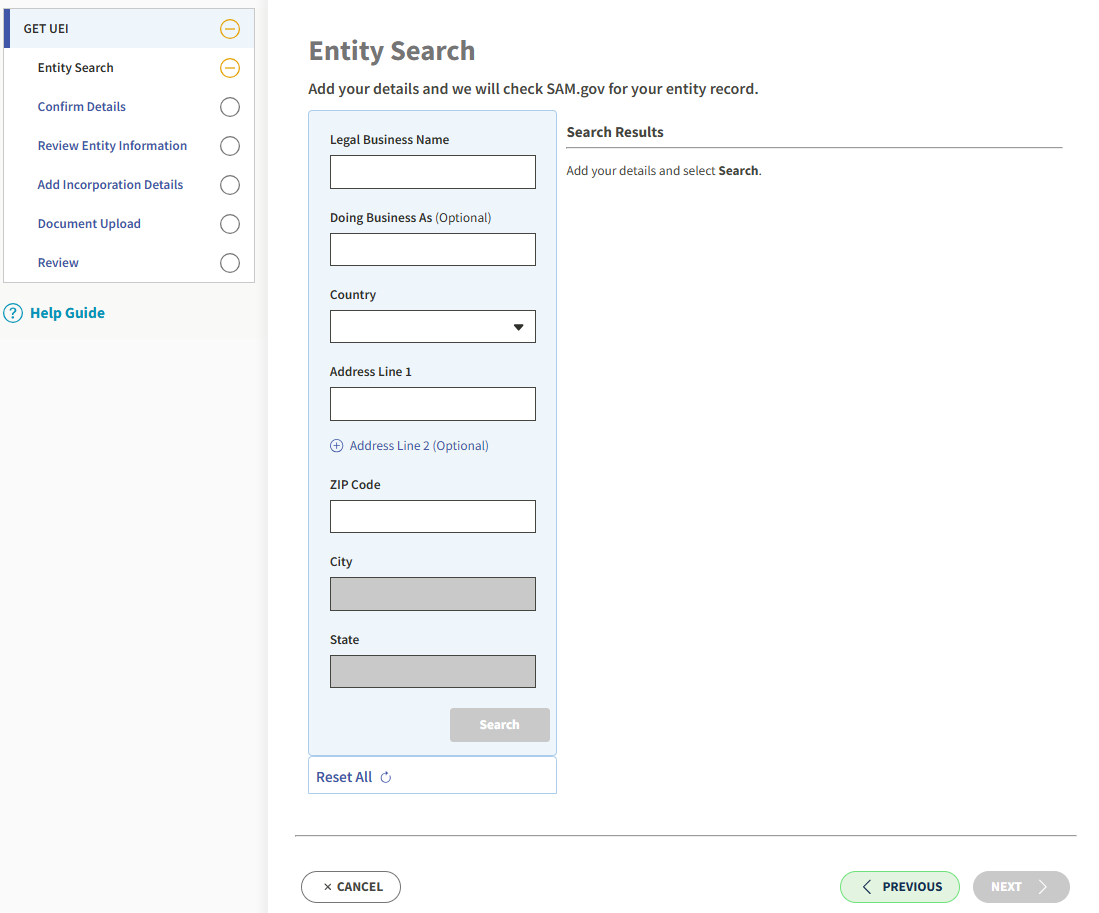
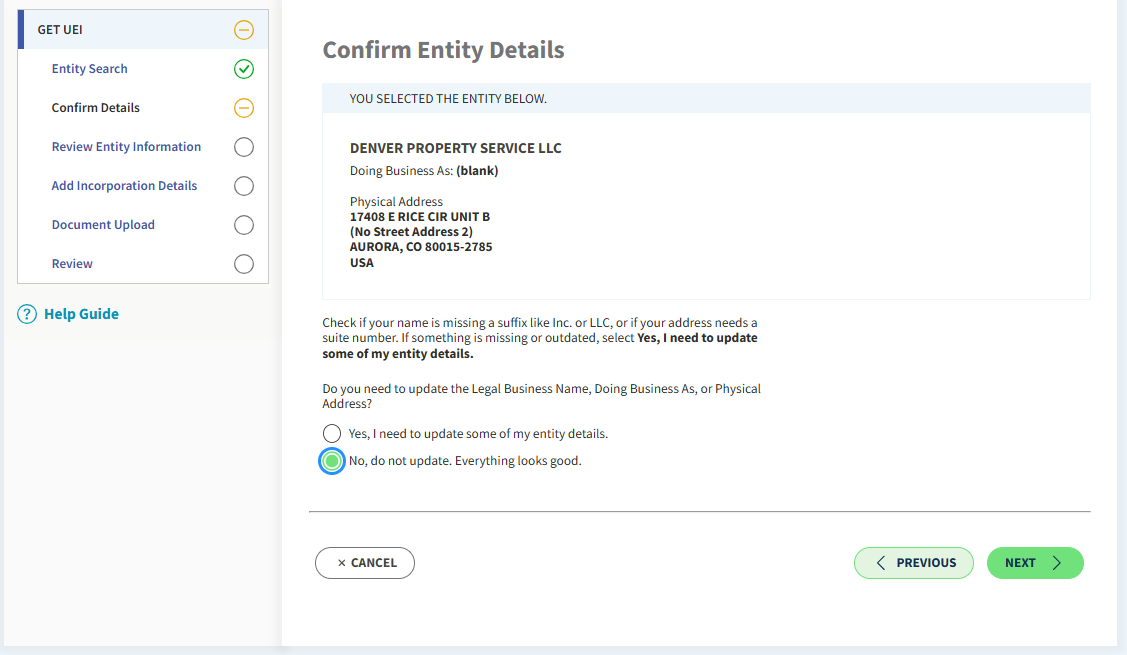
Step 7. Confirm your entity info. Once your entity has been found it will ask you to confirm the information or update it
Step 8. Enter incorporation start date and state. The once you confirm or update the next step fill in entity incorporation date and state. This should match the date filled in you state filling
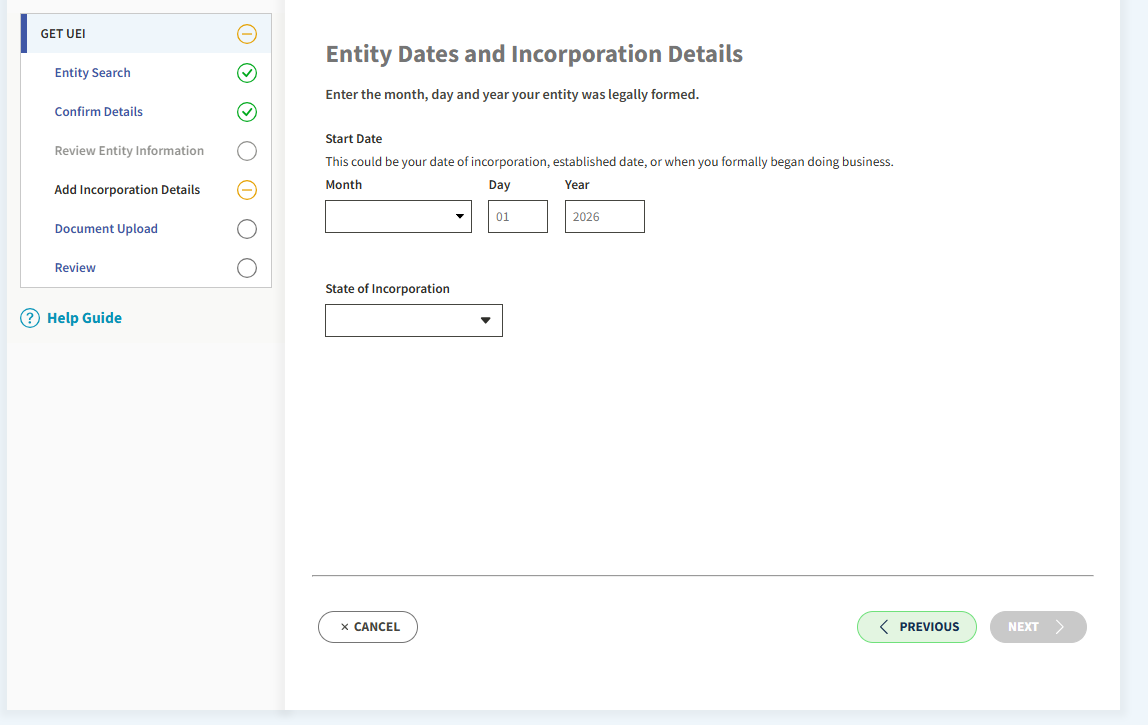
Step 9. Submit for review.
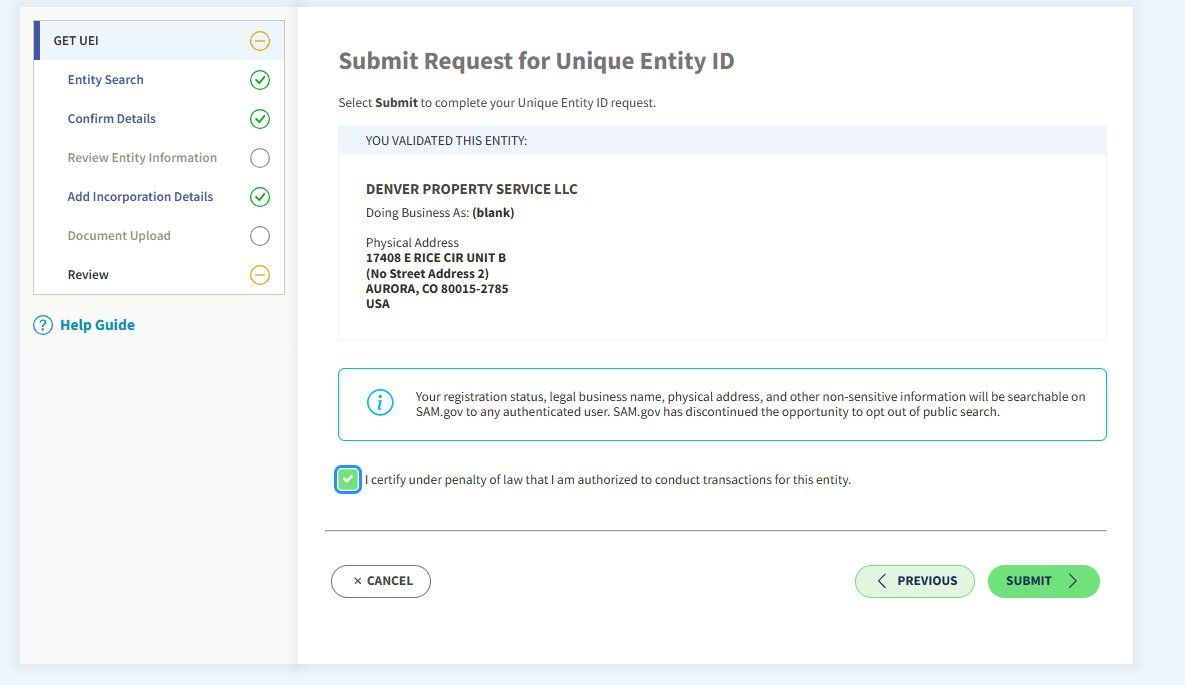
Step 10. Save you UEI. If you entered information accurately the next screen after submission should generate and assign you your Unique Entity Id (UEI)- download a copy and save this in safe place. Write your UEI down somewhere permanent the moment you receive it. You will use it on every future proposal, subcontract, and government document for the life of your business. Congratulations in starting you journey in the government contracting world.

Final Step. Confirm active status. Once processing completes, your entity record will show a status of “Active.” You can verify this anytime from your Workspace by selecting your entity and checking its status indicator. Only an Active registration makes you eligible for award.
A warning about paid “registration assistance” services
SAM.gov registration is completely free, and it always will be. There is no fee, ever, for registering or renewing your entity in SAM.gov. Despite this, a genuine cottage industry of third-party companies advertises “SAM.gov registration assistance” for fees ranging from a couple hundred to well over a thousand dollars — some send official-looking mail or run ads that closely mimic government branding, implying registration requires paid help or an application fee. It does not. If you land on any site asking for payment simply to register or renew your SAM.gov entity — as opposed to a legitimate consultant charging for their time helping with a complex issue, which is a different and defensible service — close the tab. The actual site is sam.gov, and only sam.gov; double-check the URL carefully before entering any business or banking information, since scam sites are specifically designed to look similar.
Ongoing maintenance — this is not a one-time task
Renew every 365 days. SAM.gov registration expires automatically after one year and does not renew itself. Set a calendar reminder at least 30–45 days before expiration, since renewal sometimes surfaces the same validation delays as initial registration. A lapsed registration doesn’t just block new awards — it can also invalidate any SBA certifications (8(a), HUBZone, WOSB, SDVOSB) tied to it, since those programs require an active SAM.gov record as a baseline.
Update anytime your information changes. A new address, a new NAICS code, a change in ownership, or updated banking information all require you to log back in, locate your entity record in your Workspace, click the Actions menu (three vertical dots near your expiration date), and select “Update.”
Know who holds the Entity Administrator role. This role — which controls who can manage your SAM.gov record — can only be held by someone with an actual position in your company (an owner, officer, or employee), never an outside consultant or third party. A third-party consultant helping you with registration can be granted a more limited “Data Entry” role, but cannot hold Administrator access. If you’re a solo operator, make sure you know your own login.gov credentials cold — losing access to your own Entity Administrator account, with no one else in the company able to step in, is a genuinely difficult problem to fix quickly.
Common mistakes that delay registration
- Requesting a UEI multiple times because you assume the first attempt failed — this creates duplicate entries that require manual resolution by the Federal Service Desk before you can proceed
- A legal business name that doesn’t exactly match IRS records for your EIN — even a punctuation or abbreviation difference (“Inc.” vs. “Incorporated”) can cause a validation failure
- Outdated contact emails that miss renewal notices, validation requests, and opportunity communications — use an email address someone actually monitors, not a founder’s personal inbox that goes unchecked for weeks